
Product Update: Push Smarter. Go Dynamic. Perform Better.
Introducing Dynamic Proxies, 301 Redirect Health, native Elementor publishing, and intelligent font preloading, alongside a substantial collection of improvements to deployment reliability, performance, and the everyday WordPress experience.

We’ve been working in the lab, late many nights.
This latest Headless Hostman release brings Dynamic Proxies and 301 Redirect Health into the platform, alongside new publishing controls for WordPress and Elementor, smarter above-the-fold font preloading, and a number of improvements to deployment reliability and the editing experience.
We’ve also addressed some reoccurring issues involving image dimensions (from the Performance tool), stale assets, and Critical CSS, with a few important changes to how performance settings are managed. Here’s what’s new.
Introducing Dynamic Proxies
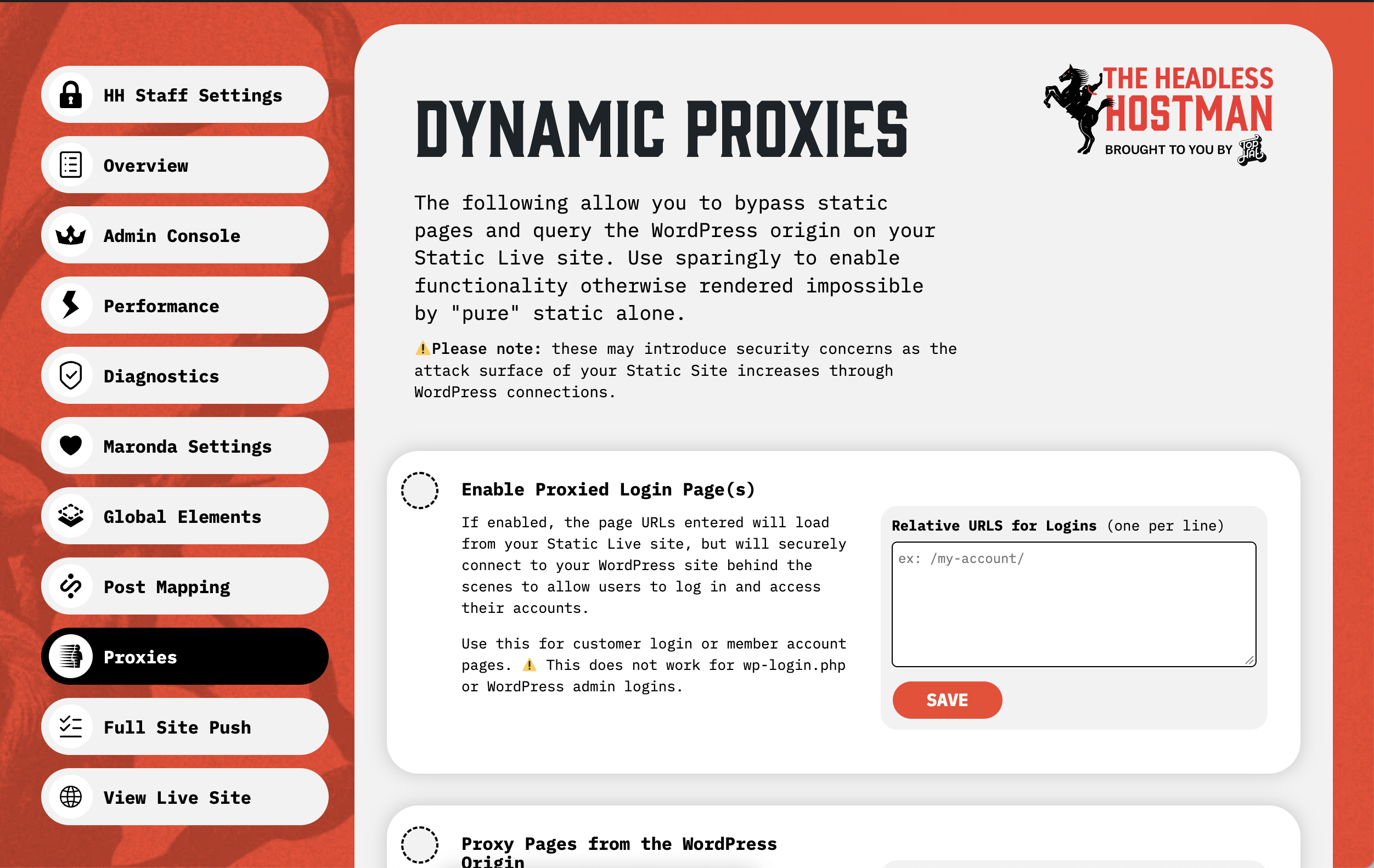
Keep the website static without losing the pages that genuinely need WordPress.
One of the most important advantages of Static WordPress is that visitors are served files instead of requiring WordPress and PHP to run for every page request. That makes for an incredibly fast and resilient website, but it also creates a fairly obvious challenge when part of your site needs to do something a static file simply cannot do.
We already solve this in a variety of ways for business critical operations, including wp-json, ajax, and more.
But we took it one step further for visible user experience items.
Customer account pages, members areas, and content that changes based on URL parameters often depend on a live WordPress session or PHP-generated output. Until now, handling those exceptions could mean working around the static publishing model or keeping certain functionality separate from the public website.
Dynamic Proxies gives you a way to identify exactly which URLs need a live WordPress response while keeping the rest of your website static.
When someone requests one of those URLs on your live site, our Cloudflare integration fetches the response from your WordPress origin behind the scenes and serves it at the same public address. From the visitor’s perspective, it is still one website, while everything that can safely remain static continues to benefit from static delivery.
You’ll find the new feature under Headless Hostman → Proxies.
Four Ways to Use Dynamic Proxies
We’ve broken this into four distinct tools so you can choose the smallest exception that actually solves the problem.
- Proxied Login Pages: Add customer-facing URLs such as
/my-account/, a members area, or a customer portal so visitors can sign in and use their accounts through the live site. These are front-end account experiences rather than replacements forwp-login.phpor the WordPress admin. - Whole Pages from WordPress: Identify a specific page that needs fresh, server-rendered content on every request, and Headless Hostman will serve that URL directly from your WordPress origin instead of using its static version.
- URL Parameter Proxies: Identify query parameters that signal a request requiring dynamic content, such as
?thing1or&thing2. Any URL containing the configured parameter is served from WordPress, regardless of its value. You enter the parameter name with its leading?or&, without an equals sign or parameter value. - Missing Asset Fallback: Optionally allow images, stylesheets, and scripts missing from your published static site to be fetched from WordPress instead of returning a broken asset to the visitor.
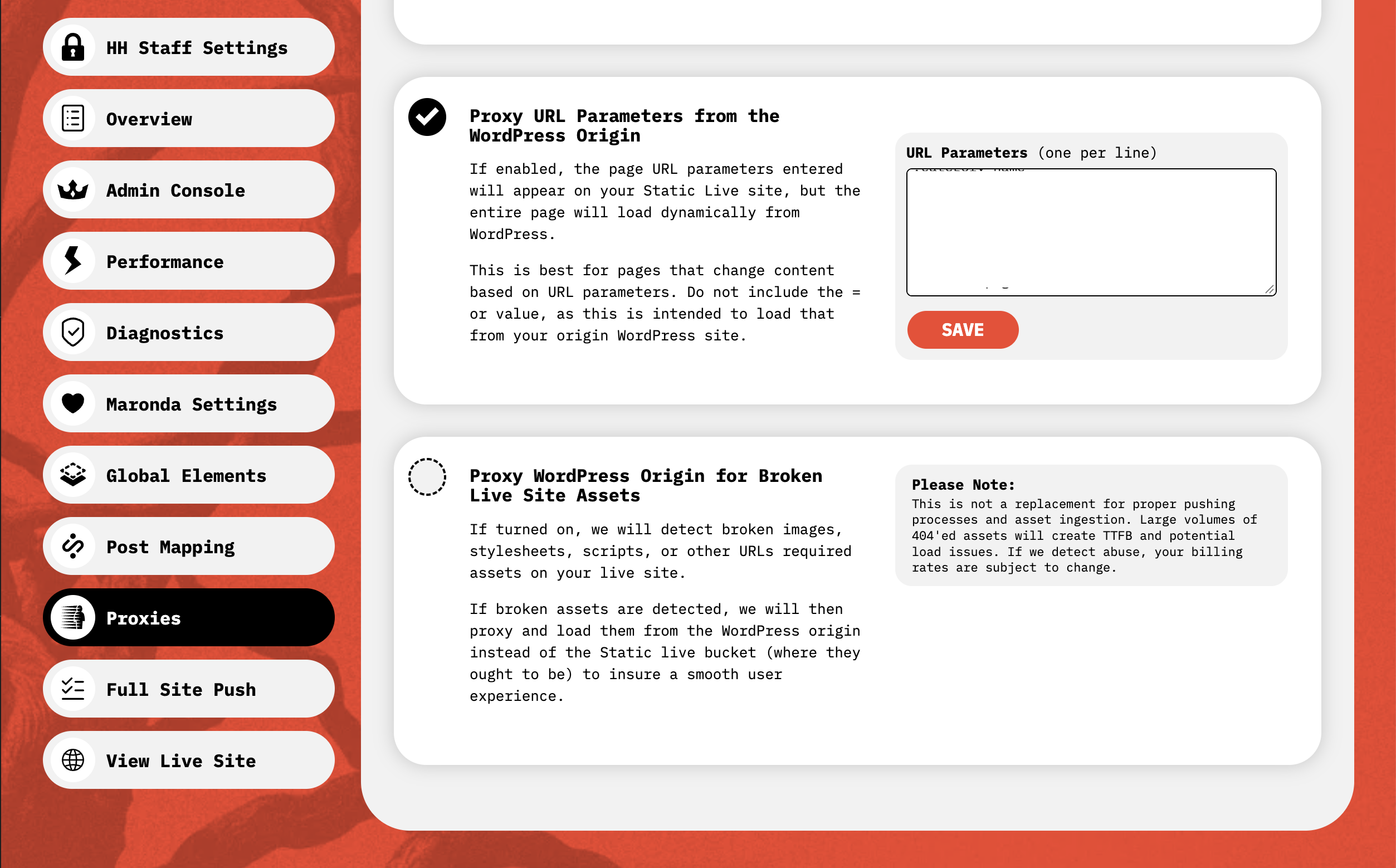
The missing-asset fallback is particularly useful as a safety net, but we want to be clear about what it is designed to do.
If a site has a large number of assets that were never published correctly, those requests are still making live trips back to WordPress, which adds response time and creates additional origin traffic. At sustained volume that traffic can also have billing implications, so this should never replace properly publishing your assets or investigating repeated misses.
Validation and Publishing Are Built In
Validation Failsafes
We wanted configuring proxies to be straightforward without leaving room for rules that appear valid in the settings screen but never match on the live website. Page entries therefore need to begin and end with a forward slash, while parameter entries must begin with ? or & and cannot contain an equals sign. If an entry is malformed, Headless Hostman identifies the specific line when you save rather than silently accepting a rule that won’t work.
Admin Delegation Controls
Access to Dynamic Proxies can also be delegated by WordPress role, following the same approach already used for features like Post Mapping, Diagnostics, and Global Elements. That means the people responsible for managing dynamic URLs can do so without needing broader administrative access to the platform.
Disclaimer: Security and Performance
There’s an important tradeoff here to be aware of.
One of the reasons static websites are so resilient is that the public website generally isn’t sending each visitor’s request to a live WordPress installation. Every dynamic proxy you enable introduces a deliberate exception to that model by allowing requests to reach your WordPress origin.
That doesn’t mean you shouldn’t use proxies; an account page that needs an authenticated session is exactly the kind of reason this feature exists. It does mean you should configure them carefully, ensure the underlying WordPress pages are appropriately secured, and avoid proxying content that could just as easily be published statically.
Dynamic Proxies is intended to let Static WordPress handle the dynamic functionality you genuinely need without compromising the static experience across the rest of your website.
Introducing 301 Redirect Health
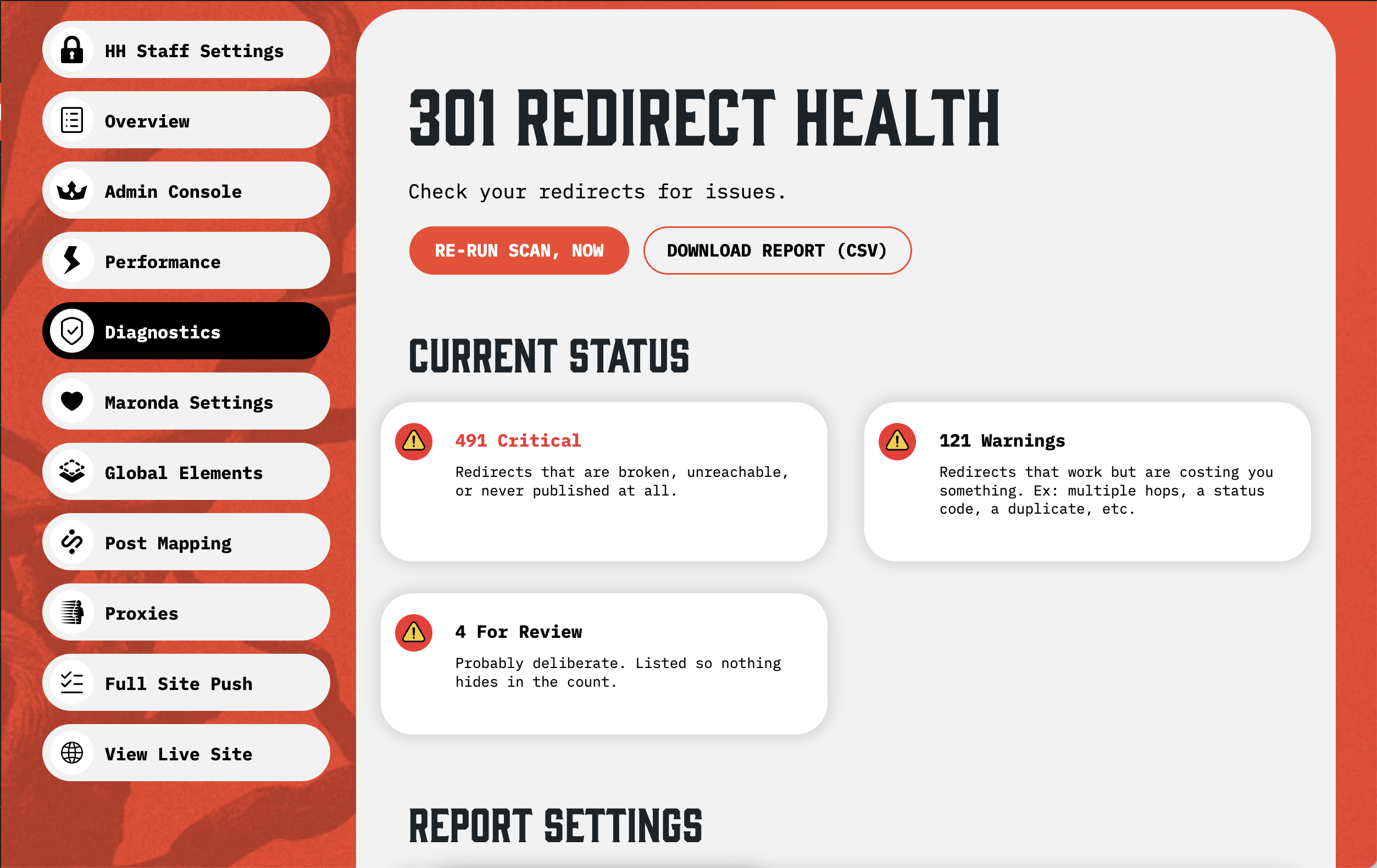
Finally, a way to know whether your WordPress redirects actually work on your static website.
Meet a brand new addition to our Diagnostics suite. This is one that came out of a problem we’ve encountered more than a few times while working with Static WordPress websites.
Redirects are one of those things that generally don’t get much attention until something goes wrong. You add a redirect through your favorite WordPress plugin, confirm that it’s configured correctly, and reasonably assume it’s going to work when visitors hit that URL on your live website.
Except on a static website, there’s another step involved. Those redirects need to make their way out of WordPress, through the static publishing process, and into whatever delivery system is responsible for serving the live site.
And as we’ve discovered, a redirect that works perfectly inside WordPress isn’t necessarily a redirect that works on your published static website.
We’ve built an entirely new diagnostics tool to help identify those discrepancies, along with a collection of other redirect problems that can quietly accumulate over time.
Instead of manually splitting hairs, our tool does this testing for you, reporting back what needs attention.
How Redirect Health Works
You’ll find the new tool under Diagnostics → 301 Redirect Health, where you can initiate a scan at any time using the Run Scan button.
During a scan, Headless Hostman examines the redirects configured in your WordPress redirect plugin, compares them against your published pages and static page index, and incorporates information from your 404 logs covering the previous seven days.
The process is entirely read-only, so running a diagnostic won’t modify your redirect configurations, publish new files, or otherwise change the behavior of your live website.
Once the scan completes, you’ll receive a summary organized into three categories:
- Critical: Redirects that are broken, unreachable, incorrectly published, or missing from the live deployment entirely.
- Warnings: Redirects that may technically work but introduce unnecessary hops, incorrect status codes, duplicate configurations, or other problems worth addressing.
- For Review: Configurations that may be entirely intentional but deserve a closer look so they don’t disappear into the broader results.
Below those totals, Redirect Health provides a breakdown of each issue type, including how many redirects are affected, why the problem occurs, and what you can do to correct it.
We wanted this to be more useful than a tool that simply tells you something is wrong, especially when you’re dealing with websites that have accumulated hundreds or even thousands of redirects over the years.
Actionable Reports You Can Actually Work Through
One of the first production websites we tested had 715 affected redirects, which quickly reinforced that a diagnostics interface alone wasn’t going to be enough.
It’s useful to know that twenty-five redirects point to missing pages, but that information doesn’t get you particularly far unless you can identify which twenty-five redirects are responsible.
That’s why Redirect Health includes a downloadable CSV report containing one row for every affected redirect, with its source URL, destination URL, and the specific issue identified during the scan.
You can open the report in Excel or Google Sheets, filter the results by issue type, and work through the affected redirects directly, or hand the report to whoever is responsible for managing content and redirects on the website.
The dashboard gives you an overview of your redirect health, while the CSV provides the information needed to actually resolve the findings.
Diagnostics That Understand Your Hosting Environment
Something we paid particular attention to was making sure Redirect Health understands the differences between our supported static delivery modes, rather than applying the same generic rules to every website.
For example, a redirect that points back to itself is a critical issue on Cloudflare because that redirect is written directly into the deployment and can create an endless loop at the edge.
On our JSON-based delivery modes, however, those self-referencing redirects are removed before publication, making them an unnecessary configuration rather than an active redirect loop.
Duplicate redirects behave differently depending on the delivery mode as well. Cloudflare processes its redirect rules in order, so the first matching entry wins, while our JSON-based modes construct their redirect maps by key, meaning the last matching entry takes precedence.
Redirect Health accounts for those differences when identifying issues and determining which redirect is actually active, so you’re not being told to fix a problem that doesn’t exist in your environment or remove a redirect that was functioning correctly.
Automatic Daily Scanning and Email Reports
Redirect Health also runs automatically once per day, keeping its diagnostic information current without requiring you to manually initiate scans every time you want to check your website.
If you’d like to receive those findings directly, you can enable Send Report via Email, which sends a daily summary along with the complete CSV report to the addresses already configured under Send Diagnostic Emails.
The daily scan continues running whether email notifications are enabled or not, so the information remains available whenever you open the diagnostics dashboard.
Fine-Tuning Your Redirect Diagnostics
We’ve included several settings to help keep the results relevant to your website, particularly when certain redirect configurations are intentional.
- You can choose whether to report off-domain targets, redirect chains, and non-301 status codes, allowing you to disable individual checks if they create unnecessary noise for your particular setup.
- There’s also an optional check for redirects whose source URL is still associated with a published page. We’ve left this disabled by default because redirecting an existing URL is common practice, and reporting every instance can bury more important findings beneath configurations that may be completely intentional.
Our goal here is to make the results useful enough that you can actually act on them, rather than producing an enormous list of warnings that eventually gets ignored.
301 Redirect Health is now available under Diagnostics, and we’d strongly recommend giving your existing redirects a scan, particularly if you’ve migrated between redirect plugins or have been maintaining the same WordPress website for several years.
Push to Static from Anywhere in WordPress
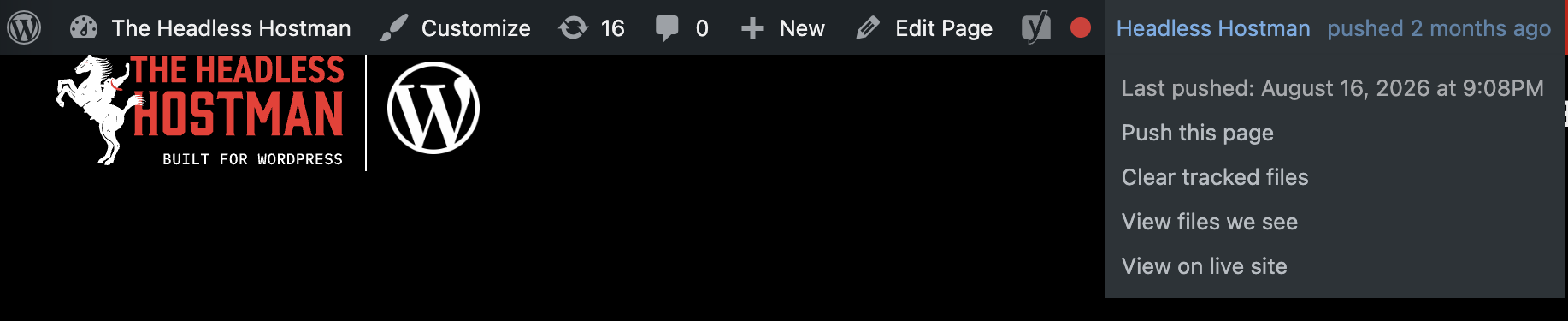
Your publishing tools, right where you need them.
One of our biggest priorities has always been making the transition from WordPress to Static as seamless as possible, and a big part of that comes down to making publishing feel like a natural extension of the WordPress experience.
Previously, pushing an individual page meant navigating into the WordPress editor to access its Headless Hostman controls, which wasn’t particularly convenient if you were already looking at the page on the front end.
We’ve now brought Headless Hostman directly into the WordPress admin toolbar, making your static publishing controls accessible while browsing pages on your WordPress site.
From the toolbar, you can:
- Push to Static: Publish the page you’re currently viewing without opening its editor.
- See Your Last Push: Check when the page was last published to your static site.
- Clear Tracked Files: Reset file tracking when troubleshooting stubborn assets or publishing inconsistencies.
- View Live: Jump directly to the published static version of the page.
It’s a relatively small addition to the interface, but one that makes a meaningful difference when you’re working across a larger website, reviewing content, or making frequent updates throughout the day.
Rather than navigating back and forth between the front end and the editor, you can manage the static version of a page from wherever you’re already working.
Native Elementor Support Has Arrived
Publish directly from the Elementor editing experience.
We’ve also extended Headless Hostman’s publishing controls into Elementor, allowing you to push the page you’re actively designing without leaving the visual editor.
You’ll now find a dedicated Headless Hostman panel in the corner of the Elementor interface, giving you direct access to static publishing while you’re working on the page. This brings the publishing experience much closer to what you’d expect from a traditional WordPress website, where editing and publishing are naturally part of the same workflow.
Introducing Save and Push
There was one particular detail we wanted to get right with this integration, because visual builders introduce an interesting challenge when you’re publishing to a static environment.
When you’re working inside Elementor, the version you’re currently looking at isn’t necessarily the version WordPress has saved. You might have just adjusted a layout, changed some content, or updated a component, but until Elementor completes its save operation, those changes aren’t available to the static publishing process.
That creates the possibility of pushing an older version of the page while you’re looking at your newest changes in the editor, which is understandably frustrating when everything appears to be ready to publish.
To address this, our Elementor integration now detects unsaved changes and automatically changes the publishing action to Save and Push.
When you click that button, Headless Hostman initiates Elementor’s save process, waits for it to complete successfully, and only then begins publishing the updated page to your static environment.
If there aren’t any unsaved changes, the standard Push to Static action remains available.
It’s an important distinction because we want the version you’re looking at in Elementor to be the version that actually gets published, without requiring you to manually coordinate saving and deployment operations.
Preload Above the Fold Fonts

Getting the right typography in front of visitors, faster.
We’re particularly excited about this addition to the Static Performance Center, because font loading is one of those areas where even well-optimized websites can leave performance on the table.
Modern WordPress themes frequently declare a considerable number of webfont files to support different typefaces, font weights, styles, and responsive layouts. Depending on how a website is built, you might have fifteen or more font files available to the browser, even though only a few of them are actually needed to display the first visible portion of the page.
The challenge is that browsers need to discover which fonts are required, request the appropriate files, and download them before displaying the intended typography. Depending on the font configuration, visitors might briefly see fallback fonts, experience invisible text, or notice typography shifting as the correct files become available.
These delays can affect perceived loading performance and, in certain configurations, metrics like First Contentful Paint (FCP).
Our Approach: Preload Only What Actually Matters
Traditional font preloading can certainly help, but it’s often implemented by manually identifying font files and adding preload instructions, which introduces its own problems if you start prioritizing resources that aren’t actually needed during the initial page render.
Rather than blindly preloading every font declared by your theme, Headless Hostman identifies the specific webfont files used to render text above the fold, evaluating the page at both desktop and mobile breakpoints to account for differences in typography, font weights, styles, and responsive layouts.
Once we’ve identified those files, we automatically generate preload instructions so the browser can begin requesting the fonts needed for the initial viewport earlier in the loading process.
This means we’re prioritizing fonts based on what actually appears on the page, rather than making assumptions about which resources might be important.
On one of our test pages, approximately fifteen font files were available, but only three were actually needed above the fold. Instead of preloading the entire collection and unnecessarily competing with other important resources, Headless Hostman was able to prioritize those three files specifically.
That distinction matters because preloading is only beneficial when you’re prioritizing the right resources. An excessive number of preload instructions can actually work against performance by consuming bandwidth that could be better spent on other critical assets.
Even Better with Generate Critical CSS
If you’ve been following our recent product developments, you might remember that we rebuilt our Critical CSS generation engine in-house to better identify and prioritize the styling necessary to render the first visible portion of a website.
Preload Above the Fold Fonts is designed to complement that functionality, with Generate Critical CSS identifying and inlining the CSS rules required for the initial viewport while Preload Above the Fold Fonts ensures the corresponding font files are requested as early as possible.
By handling both the styling instructions and the font resources those styles depend on, we’re helping browsers render the initial viewport more efficiently, with fewer opportunities for delayed typography or unnecessary resource requests.
And because this analysis happens during the static publishing process, the optimization doesn’t introduce additional processing work for visitors every time they request a page. The appropriate preload instructions are already part of the published output.
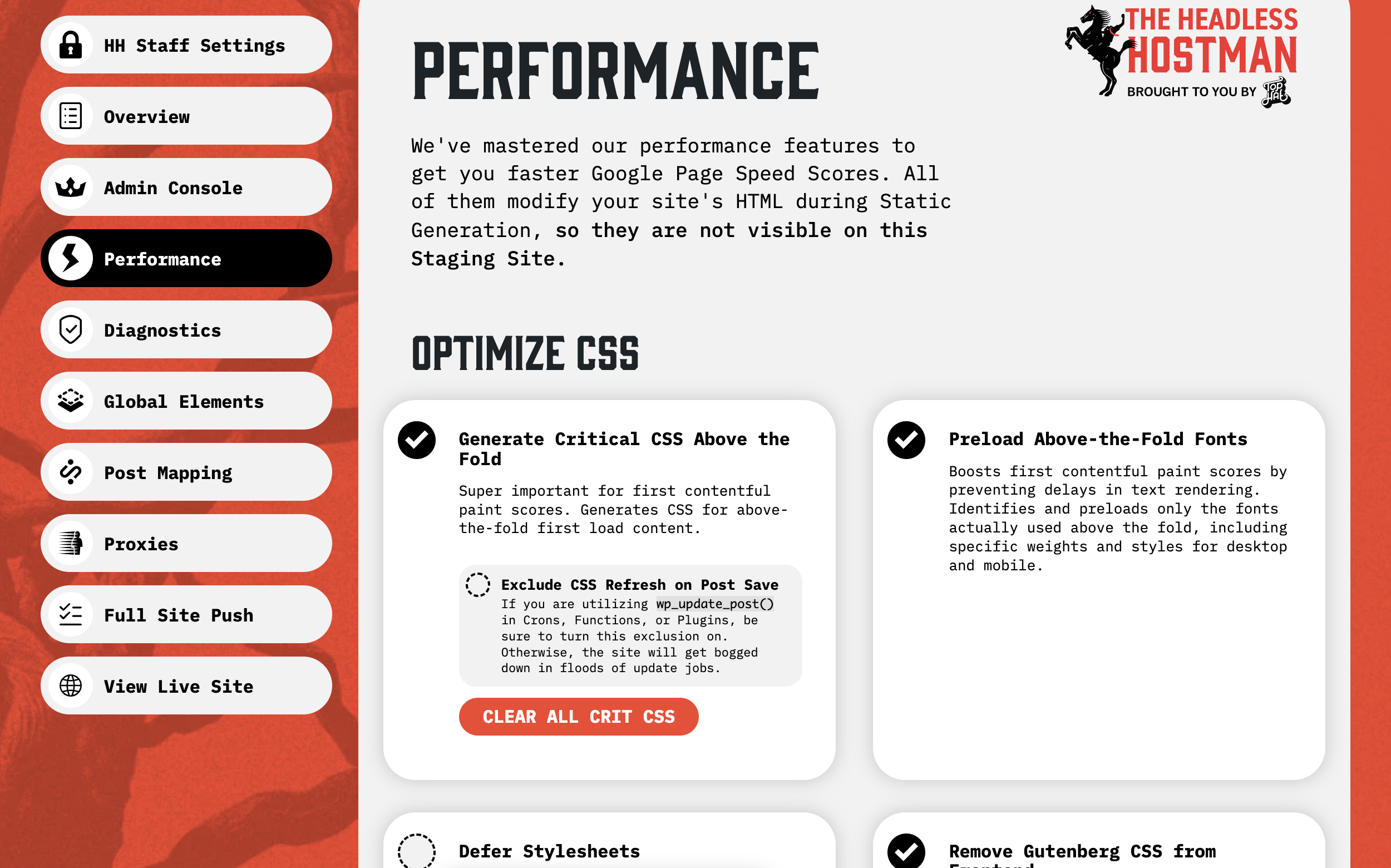
Preload Above the Fold Fonts is now available in the Performance Center and can be enabled alongside Generate Critical CSS for sites looking to further optimize their initial rendering performance.
Improvements to Publishing Feedback in the WordPress Editor
Making sure important publishing messages are actually visible.
We’ve made several improvements to the Headless Hostman publishing panel inside the WordPress editor, addressing a couple of situations where the system was technically communicating with you, but doing so in a place that was particularly easy to miss.
Previously, certain status messages were written to a single notification area at the very bottom of the Headless Hostman panel, underneath the other available controls and sections.
On many posts, that meant important messages were appearing outside the visible area of the editor panel, leaving users wondering why an action hadn’t completed or whether anything was happening at all.
We’ve updated two workflows in particular to make their feedback considerably more useful.
Publishing Draft Pages to Static
When attempting to push a page that was still saved as a draft, Headless Hostman would correctly refuse the deployment because unpublished WordPress content isn’t ready to be published to the static website.
The problem was that the explanation appeared in that easily overlooked notification area, meaning it wasn’t necessarily obvious why the push hadn’t started.
We’ve replaced that behavior with a more helpful publishing flow.
If you attempt to push a draft page, Headless Hostman now immediately asks whether you’d like to publish it in WordPress first.
If you confirm, we trigger WordPress’s own publishing action and then resume the static push once the editor returns, allowing you to complete what previously required several separate steps without manually coordinating the process.
This should make the experience particularly useful when you’re finishing a new page and want to take it directly from draft to your live static website.
Better Feedback When Generating Test Pages
We’ve also improved the experience around generating test pages, which previously suffered from the same issue with progress and completion messages appearing in an inconvenient location.
Now, progress is displayed directly on the button you clicked, while the result of the operation is communicated through a popup so you can clearly see when the test has finished.
Alongside that change, we’ve corrected an issue where the View the Test action didn’t reliably open the generated test page.
The test now opens in a new browser tab, allowing you to inspect the result without navigating away from the WordPress editor or losing your place in the content you were working on.
These are relatively small interface improvements, but they’re an important part of making static publishing feel natural and predictable, particularly when an operation needs your attention before it can continue.
Restoring a Previous Static Version from the Manager Now Automatically Clears Your Cloudflare Cache
Making Static Instant site restorations a little more reliable.
One of the advantages of Headless Hostman’s deployment architecture is the ability to restore an earlier version of your static website directly from our Manager, which is particularly useful when you need to roll back a change or recover from an unexpected publishing issue without waiting on a fresh deploy.
Previously, however, restoring an earlier Cloudflare deployment could leave visitors seeing an outdated version of the site because the CDN was still serving content cached from the deployment you were replacing.
Although the restore itself had completed, the cached content could remain available until it expired or someone manually cleared it, creating an unnecessary disconnect between the deployment you had restored and what visitors were actually seeing.
We’ve updated that process so Headless Hostman automatically clears the CDN cache as part of a site restoration, helping ensure the restored version is served without requiring a separate trip into Cloudflare to handle cache invalidation.
Optional Restore Webhook Notifications
We’ve also expanded our existing Client Webhook functionality to support restoration events, giving teams with more advanced deployment workflows another way to stay informed when a previous version of a site is restored.
You’ll now find a checkbox beside the Client Webhook URL setting that allows you to enable webhook notifications specifically for restores. When enabled, Headless Hostman calls your configured webhook URL as part of the restoration workflow, allowing you to connect those events to your own notification systems, logging tools, or internal processes.
This option is disabled by default, so existing configurations won’t change unless you explicitly enable it, and your webhook URL continues to remain stored on your own WordPress site rather than being stored or distributed elsewhere.
For agencies and teams managing multiple environments, this provides another useful point of visibility into deployment activity without introducing a separate notification system or additional platform configuration.
Full Site Pushes and Single Page Pushes Now Coordinate Properly
Preventing overlapping deployments from interfering with each other.
Headless Hostman supports several ways to publish content, including individual page pushes, scheduled publishing, bulk operations, and full site deployments, giving teams the flexibility to update their static websites without rebuilding everything unnecessarily.
That flexibility introduces some interesting challenges when multiple publishing operations happen at the same time, particularly when a full site deployment is already running and someone attempts to push an individual page.
Previously, these overlapping operations could interfere with one another because both processes were attempting to update portions of the same static deployment, creating the possibility of one operation overwriting work performed by the other.
We’ve improved how publishing operations coordinate with each other so Single Page Pushes now wait when a Full Site Push is already underway, preventing conflicting deployments from running simultaneously.
We’ve also updated the WordPress editing experience to communicate when a full site deployment is in progress, so users receive an appropriate indication of what’s happening rather than initiating a conflicting push that might not complete as expected.
This is particularly valuable for larger websites and agencies where multiple people might be updating content throughout the day, or where scheduled and manual publishing operations can occasionally overlap.
The goal is straightforward: deployments should behave predictably regardless of how many people are working on the site or which publishing method they’re using.
Retiring a Legacy Performance Feature
Why we’re moving away from Defer Loading of Contents Below the Fold.
We’re constantly experimenting with ways to improve front-end performance, but part of maintaining a reliable optimization platform means recognizing when a technique introduces compatibility issues that outweigh its potential benefits.
With that in mind, we’re officially retiring Defer Loading of Contents Below the Fold from the active collection of Performance Center features.
This optimization used the browser’s ability to defer rendering work for content outside the visible viewport, potentially reducing the amount of processing required during the initial page load.
While the technique can be effective in certain situations, we’ve found that it creates compatibility problems with some interactive elements, particularly pop-ups implemented by WordPress themes and visual builders.
The issue comes down to how browsers handle elements inside sections whose rendering has been deferred. If a pop-up exists within one of those sections, the browser may constrain its positioning or rendering behavior in ways that prevent it from displaying as intended.
Depending on the implementation, this could cause pop-ups to become clipped inside their parent sections, fail to cover the full viewport, or not appear correctly when triggered by timers or exit-intent interactions.
Unfortunately, these behaviors are associated with the underlying browser rendering technique, which means there isn’t a reliable universal fix we can implement across every theme, builder, and pop-up system.
What This Means for Existing Sites
We’re handling this transition conservatively because we don’t want to introduce unexpected changes to websites that are already using the feature successfully.
If your site currently has Defer Loading of Contents Below the Fold enabled, it will remain available and continue operating as configured, although you’ll now see it identified as Legacy inside the Performance Center.
For sites that don’t currently have the feature enabled, the option will no longer appear in the available optimization settings.
If you’ve experienced unusual behavior with pop-ups or other interactive elements on a site using this feature, we’d recommend disabling it to see whether the rendering issue resolves.
We’re deliberately avoiding automatically changing existing configurations, since some websites may be benefiting from the optimization without experiencing any compatibility problems.
Ultimately, we’d rather retire a technique that has proven difficult to support universally than continue recommending an optimization that could introduce unpredictable behavior across different WordPress environments.
More Improvements Under the Hood
Alongside the larger features and fixes covered above, we’ve made several additional improvements to the Performance Center and our publishing infrastructure.
Performance Settings Now Respect Their Actual State
We’ve corrected an issue where certain site-level performance settings could be hidden from the interface without fully disabling the underlying functionality, creating a discrepancy between what the settings screen displayed and what the platform was actually doing.
Now, when a supported performance feature is disabled for a site, the corresponding functionality is disabled as well, ensuring those configuration choices are properly respected.
More Granular Performance Controls
We’ve expanded the number of Performance Center options that can be managed on a per-site basis, giving teams greater flexibility to configure optimizations according to the requirements of individual websites rather than applying the same settings across every environment.
That’s particularly useful for agencies managing a variety of WordPress themes, builders, and hosting configurations, since what works well for one website isn’t necessarily appropriate for another.
Scheduled and Bulk Publishing Reliability
We’ve also made several smaller improvements to scheduled publishing and bulk deployment operations, continuing our work to make these processes more reliable as websites grow and publishing workflows become more complex.
Fixed: Images Occasionally Publishing at Incorrect Dimensions
Making Add Image Dimensions more reliable, especially for lazy-loaded images.
We’ve corrected an interesting issue affecting our Add Image Dimensions optimization, which could occasionally cause images to publish with extremely small dimensions even though the original image was perfectly fine.
For some background, Add Image Dimensions is designed to improve visual stability during page loading by identifying an image’s rendered dimensions and writing those values directly onto its HTML element.
This gives the browser enough information to reserve the appropriate amount of space before the image finishes downloading, helping prevent surrounding content from jumping around as images appear. It’s an important part of improving Cumulative Layout Shift (CLS), one of Google’s Core Web Vitals.
We discovered that under certain conditions, an image could end up with dimensions of just 8×8 pixels, which would then remain associated with the image even after its actual file had loaded.
The problem came down to how our optimization handled lazy-loaded images.
Previously, the script measured images as soon as the page structure was ready, but an image configured for lazy loading might not have actually downloaded at that point. Rather than reporting dimensions of zero, the browser could expose a small placeholder area measuring eight pixels square.
Our script was treating those placeholder measurements as the image’s actual rendered size and writing them into the HTML, effectively locking the element to dimensions that had nothing to do with the real image.
Waiting for the Actual Image
We’ve updated the optimization so images are only measured once their actual content has loaded, ensuring that the dimensions we write reflect the image rather than a temporary browser placeholder.
We’ve also improved how the feature handles lazy-loaded images throughout the page, since previously some images below the fold could be skipped entirely during the initial measurement process.
Now, those images are measured as they load, allowing the optimization to handle content further down the page rather than limiting itself to images available during the initial rendering process.
The result should be more consistent image dimensions, fewer unexpected layout problems, and better coverage across websites that rely heavily on lazy loading for performance.
Smarter File Tracking and More Reliable Deployments
Fixing an especially frustrating edge case with interrupted pushes.
We’ve made some significant improvements to how Headless Hostman tracks files during deployment, specifically addressing an issue that could occasionally leave static assets stuck on an older version even after subsequent pushes.
To understand what was happening, it helps to know that Headless Hostman tracks published assets so we can avoid unnecessarily uploading files that haven’t changed. This is an important part of making our publishing process efficient, particularly on larger websites with substantial media libraries and collections of static assets.
We uncovered an edge case where certain files could be recorded as successfully uploaded before the upload itself had actually finished. If a deployment was interrupted or cancelled at precisely the wrong moment, those files could remain marked as published even though the completed versions never made it to the live environment.
Because our tracking system believed the files were already live, subsequent pushes could skip them if their contents hadn’t changed, leaving an image, stylesheet, or other asset stuck on an older version.
The workaround was to manually clear tracked files and push again, which resolved the issue but wasn’t something we wanted customers to have to troubleshoot in the first place.
Now, We Verify Before We Track
We’ve updated the deployment process so that files are only recorded as published once their uploads have been confirmed successful, ensuring an interrupted or cancelled push doesn’t incorrectly mark unfinished assets as complete.
If an upload doesn’t finish, that file remains eligible for publication during the next push, allowing the system to recover naturally rather than requiring someone to intervene and reset tracking information.
This should substantially reduce the likelihood of encountering those particularly confusing situations where a file appears to have been updated in WordPress but refuses to change on the live site, even after another deployment.
It’s the kind of infrastructure improvement that isn’t particularly visible when everything is working correctly, but it makes the entire publishing experience considerably more dependable.
Critical CSS Gets Another Reliability Upgrade
Correcting asset references in above-the-fold styling.
Our Critical CSS engine is designed to identify the styles required for the initial viewport and include them directly in the published page, allowing browsers to begin rendering visible content without waiting for the site’s complete stylesheets to download.
During testing, we identified an issue affecting certain configurations where font and background-image references inside generated Critical CSS could point to incorrect asset locations after the page was converted to Static.
Depending on how the site’s assets were structured, this could cause certain fonts or background images to fail to load correctly, which is especially frustrating when those resources are part of the very section of the page we’re trying to optimize.
We’ve improved how those asset references are processed so font and background-image URLs are correctly resolved before the page is published, keeping the generated Critical CSS consistent with the actual locations of the assets on the static website.
Importantly, this correction also applies to Critical CSS that was previously generated, meaning you don’t need to manually clear existing Critical CSS data or regenerate everything from scratch to benefit from the fix.
Combined with our new font preloading functionality, these improvements help ensure that the initial viewport is both optimized for performance and rendered accurately.
As always, a lot of what we build and improve comes directly from the feedback we get from the people using Headless Hostman every day. Keep the ideas and requests coming our way, because they genuinely help shape where we take the platform next.
Enjoy the updates, and happy haunting.
Deeper into the Abyss

PHP2Shell: What Happened, What We Know, and How We Responded
Two critical vulnerabilities in PHP put websites around the world on alert this week. Here's what happened.

Static Apex Domain Launches: No Nameserver Changes Required
Cloudflare's static infra typically requires you to change your nameservers to them for launching A Records. Not anymore with Headless Hostman.

Product Update: Improved Git Reliability (Near-Zero Failure Rate)
We've implemented an updated GitHub API function set to solve a recent surge in Git errors.
ready to get started?
Headless Hostman takes the best of both traditional CMS systems and other static host providers to create a site that is both easy to manage, fast, and secure.